How to send us your reports
We never ask for access to your ad accounts. You send the files; we work from them, and nothing in your accounts gets touched.
Download this guide as a PDF →
This page shows every click. Pick only the parts that match what you ordered. If something here doesn't exist in your account, skip it and tell us — that is useful information too.
1 · What we need from you
Visual diagnostic
- Photos of your product
- Your current ads and main website pages
- Optional: post stats, last 90 days
- Optional: ad-level export, last 90 days
Ad Diagnostic
- Meta Ads Manager: 3 exports
- Google Ads: campaigns, search terms, change history
- GA4: traffic sources
- Screenshots: conversion settings, GA4 events, Meta events setup
- If you have them: CRM and call exports
Set every export to the last 90 days. Choose CSV when asked for a format.
2 · Meta Ads Manager — three files
You export the same table three times. Only one setting changes each time: the level.
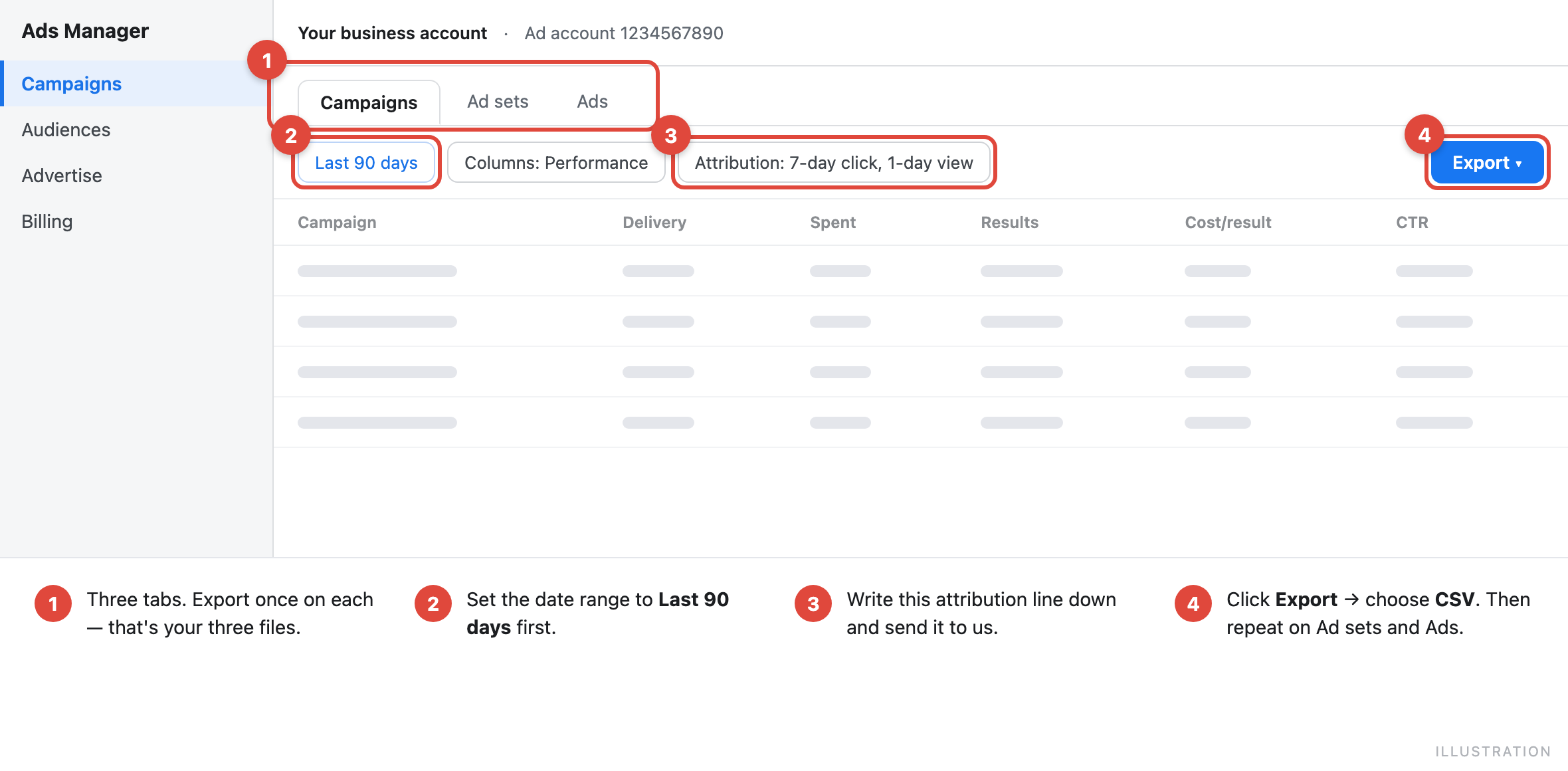
- Open Ads Manager and pick the ad account you want us to look at.
- Set the date range at the top right to Last 90 days.
- Click the Campaigns tab. Then click Export and choose CSV. That is file 1.
- Click the Ad sets tab. Export again. File 2.
- Click the Ads tab. Export again. File 3.
If you also want the visual diagnostic with numbers
In the Ads tab, open Columns → Customize columns and make sure these are switched on before you export: Ad name, Campaign name, Amount spent, Impressions, Clicks, CTR, CPM, Results, Cost per result, Reach, Frequency.
3 · Post stats — how your organic content performed
- Open Meta Business Suite → Insights → Content.
- Set the date range to the last 90 days (60 is the minimum that still tells us anything).
- Look in the top right for the export button and download the file.
Meta renames this button from time to time — it may read “Export data”, “Download” or show a download arrow. If you can't find it, send a note and skip this file; it is optional.
4 · Google Ads — three files
1Campaigns with their numbers
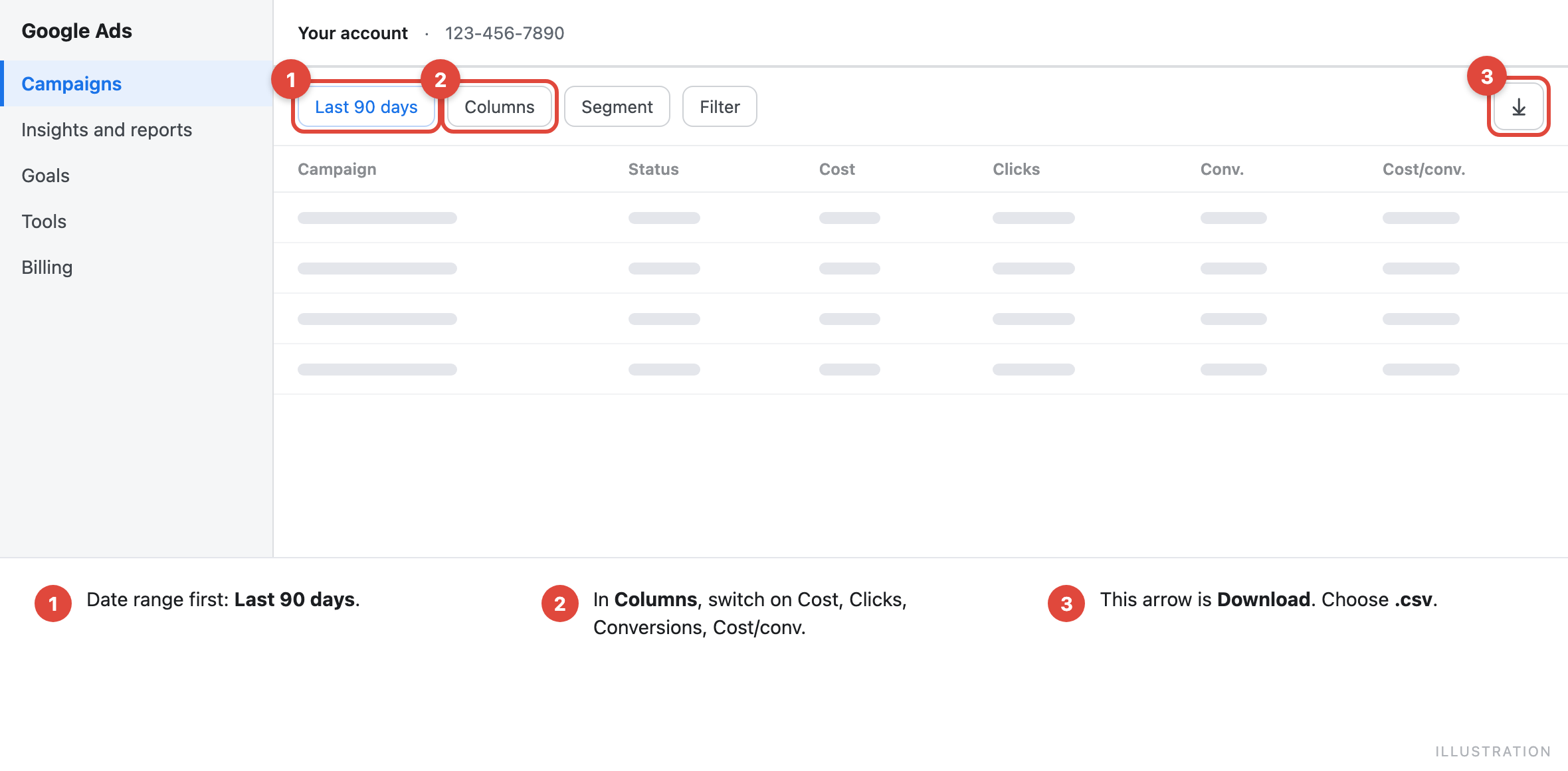
- Open your campaigns list and set the date range to the last 90 days.
- Click Columns and switch on: Campaign name, Campaign type, Status, Impressions, Clicks, CTR, Avg. CPC, Cost, Conversions, Cost per conversion, Conversion rate, Conv. value.
- Click the download icon above the table and choose .csv.
2Search terms — what people actually typed
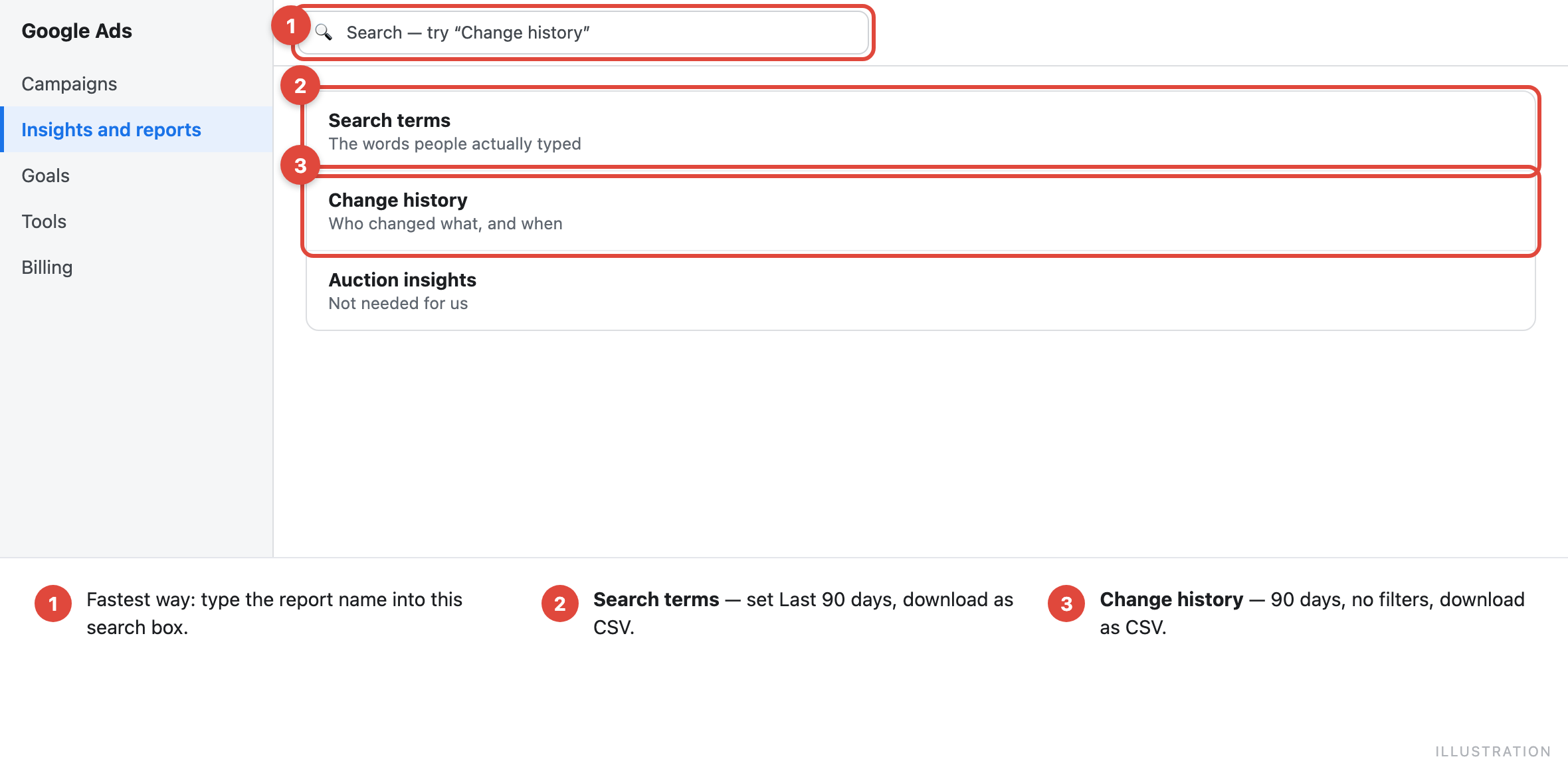
Go to Campaigns → Insights and reports → Search terms. Set the last 90 days, then download as CSV.
Google hides rare search terms, and Performance Max only shows broad categories instead of the terms themselves. That is Google's limit, not something you did wrong.
3Change history — what was changed and when
The fastest way: type Change history into the search box at the top of Google Ads and open the result. Set the last 90 days, leave all filters off, and download as CSV.
This file is often the one that explains a sudden drop, so please don't skip it.
5 · GA4 — where your traffic comes from
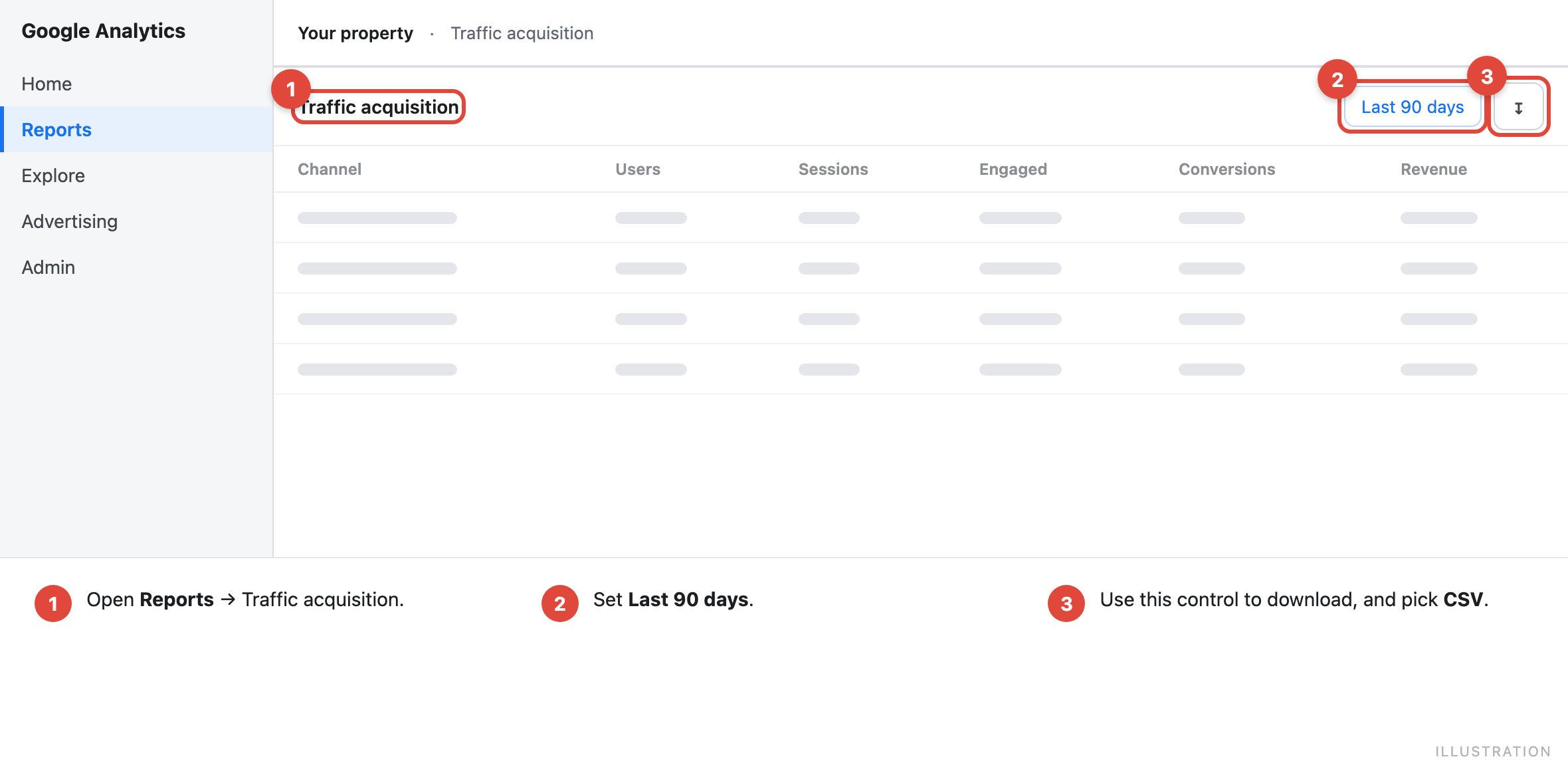
Open Reports, choose the traffic acquisition report, set the last 90 days, and use the share/export control to download it as CSV.
6 · Screenshots — the part that never comes as a file
Settings can't be exported. A picture is the only way to show them, so here screenshots are exactly right. Please take them this week — an old screenshot describes an account that no longer exists.
Take one screenshot of each screen you have
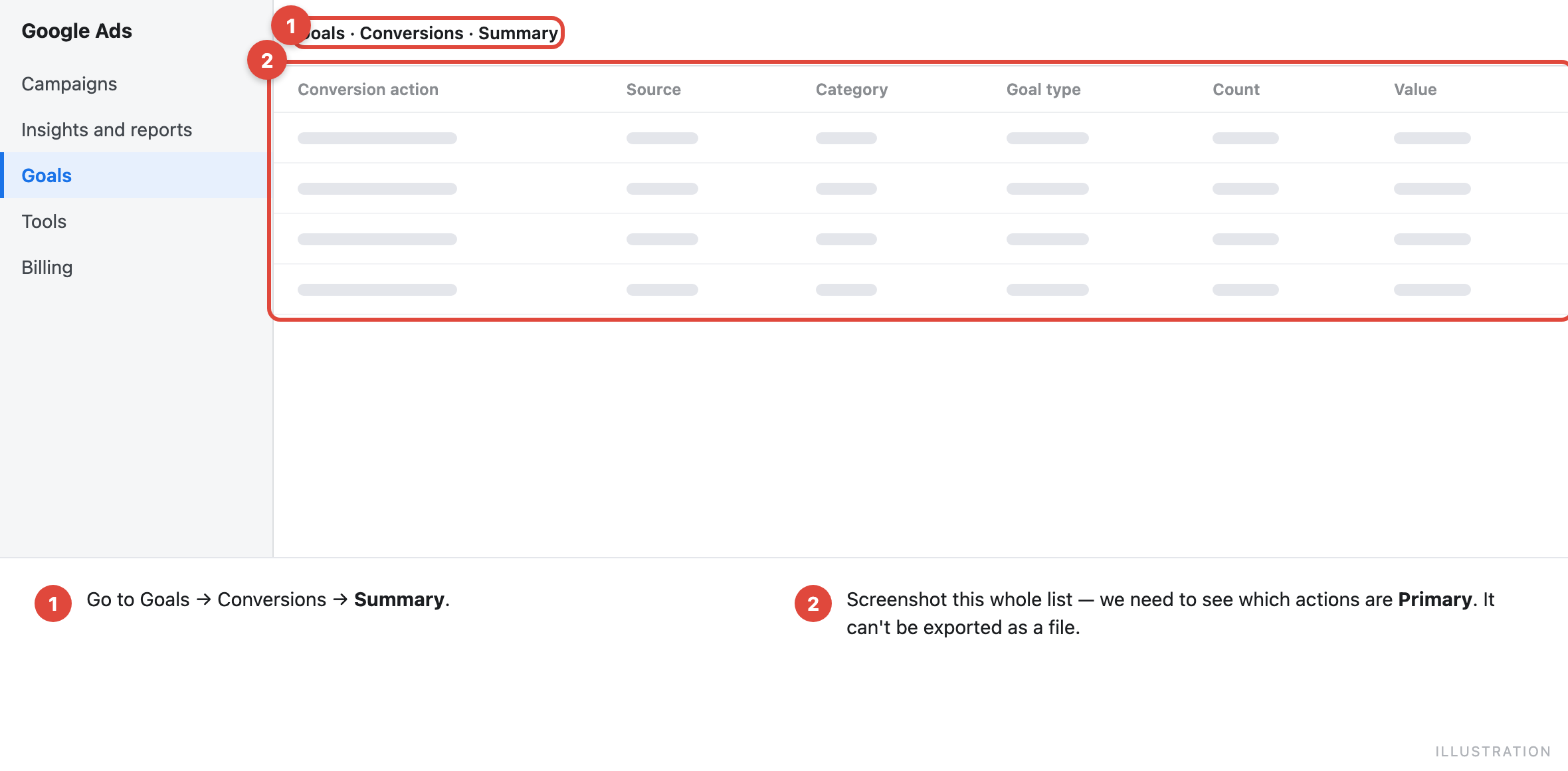
- Google Ads: Goals → Conversions → Summary — the full list, so we can see which actions count as Primary.
- GA4: Admin → Events — so we can see which events are marked as key events.
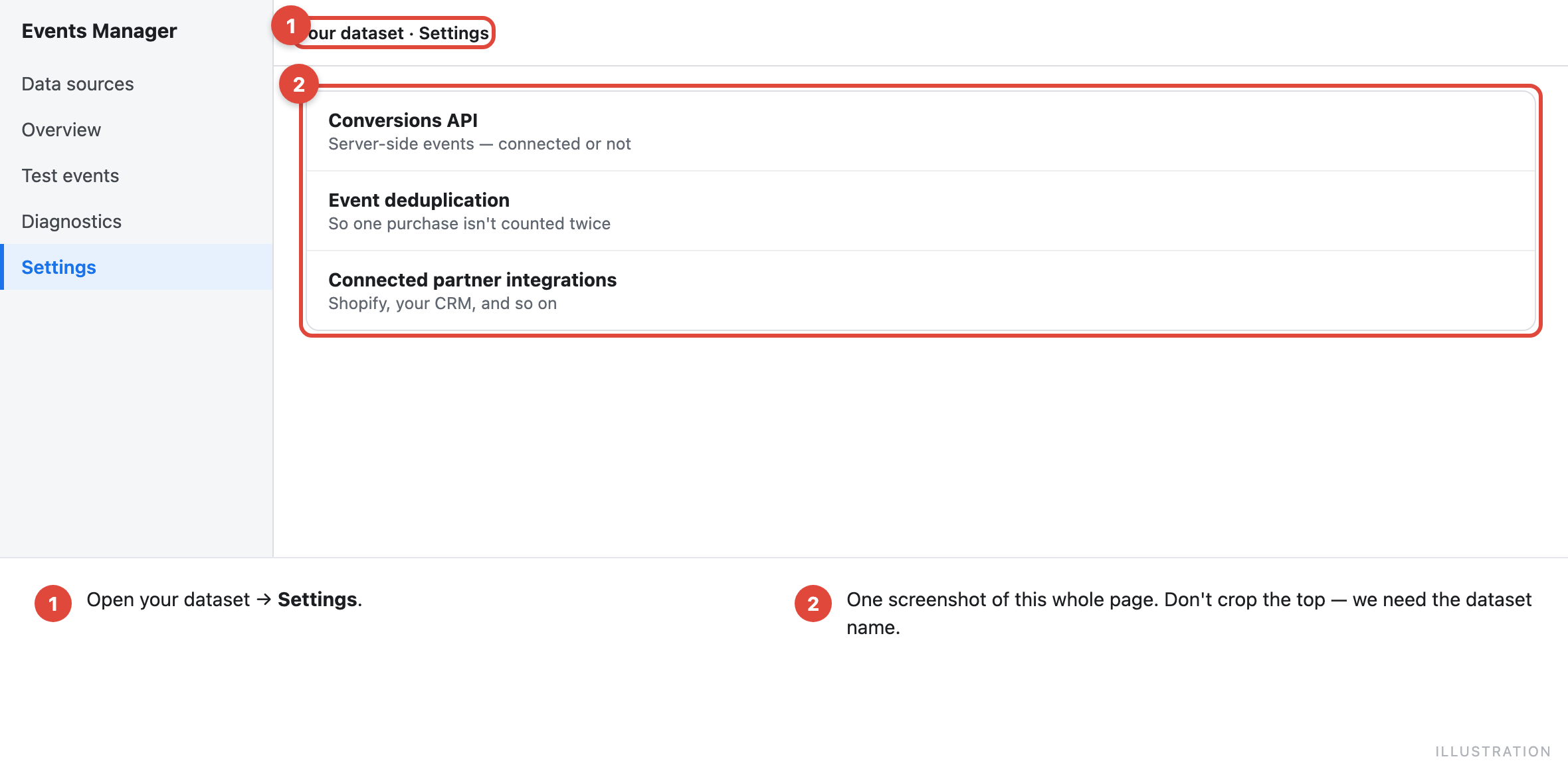
- Meta: Events Manager → your dataset → Settings — so we can see whether server-side events (Conversions API) are switched on.
- Google Ads bidding: open one campaign's settings and capture the bidding strategy.
Capture the whole window, including the top of the page. Don't crop.
7 · If you have them
- CRM export: deals from the last 90 days with the source of each one.
- Call tracking export: calls from the last 60–90 days.
- Shopify or your store: orders for the same period, with order value and source.
These are what let us tell you whether the leads your ads report turned into money.
8 · Before you send — four quick checks
- The dates say 90 days. Open the file: the date range is usually printed in the first rows.
- Paused campaigns are in there too. A file with only the active ones hides half the story.
- It's the whole account, not one campaign. If you were looking at a single campaign when you exported, the file only contains that one.
- It's a file, not a picture. CSV or XLSX for numbers. Screenshots only for settings screens.
9 · What we can't see this way — and why we say so
Working from files instead of access is a fair trade, but it isn't free. These stay invisible to us, and if any of them matters for your case, it will be written in your report rather than glossed over:
- The real size of your audiences and how much they overlap.
- How well Meta matches your server-side events, and whether purchases get counted twice.
- Whether a conversion fires on a real order or just on a button click.
- Whether tracking survives the jump from your site to checkout on another domain.
10 · Sending it
Upload everything on the intake form. Up to 25 MB per file. If an export is larger than that, choose a shorter period or send it as a link to your cloud drive.
Something here doesn't match what you see on screen? Tell us — platforms move buttons, and we'd rather fix this page than have you hunting.